Adding Network Tenants-Voca Sub Regions
You can add Network Tenants to Live Platform representing Voca CIC devices or sub regions. You then must attach them to service provider or channel tenants (minimum of a single device). When deploying the Voca CIC service, you attach the sub region to the service. Live Platform portal Voice Quality monitoring is filtered according to the sub regions (devices).
You cannot create services under this tenant type.
| ➢ | Do the following: |
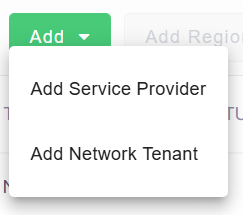
| 1. | In the Tenants page, from the Tenants drop-down, choose Add > Add Network Tenant. |
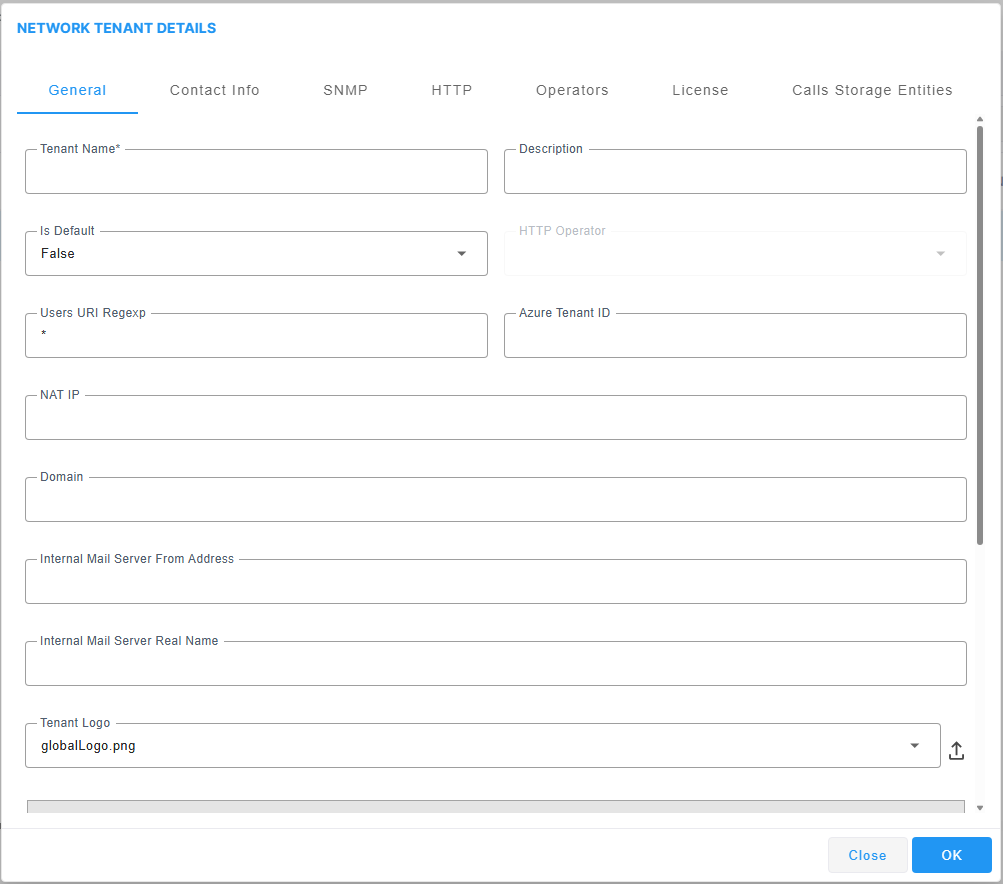
Tenant Details - General
|
Parameter |
Description |
||||||
|---|---|---|---|---|---|---|---|
|
Tenant Name |
Enter the name of the Service Provider account. |
||||||
|
Description |
Brief description of the tenant. |
||||||
|
Is Default |
See also Connecting Devices Automatically |
||||||
|
HTTP Operator |
This operator is attached to the Service provider tenant. This connection is used for files transfer (upload and download) and REST communication. Connection requests sent to Live Platform by these devices are managed through this operator. |
||||||
|
Users URI Regexp |
This parameter facilitates generating statistics on calls made exclusively from URIs in a specific tenant. Operators can run a regional expression to find the URIs associated with the specific tenant and then generate statistics exclusively on them.
If in a five minute interval there are more than 2000 different URIs,the URI statistics for this five minute interval will not be saved. |
||||||
|
Azure Tenant ID |
Service Provider Microsoft Entra ID. |
||||||
|
NAT IP |
This option can be configured when Live Platform is deployed behind a different NAT to customer tenants. It allows the configuration of an applicative level NAT interface for each tenant domain; Devices’ incoming communication like SNMP traps, license reports and file upload/download will communicate via the tenants’ NAT interface. |
||||||
|
Domain |
The name of the tenant domain that is used for connecting devices to Live Platform. When defined and the parameter "FQDN Support for Auto-Detection" is enabled (see Global Configuration), devices that are connected to Live Platform are automatically added under the relevant tenant instead of to the default Auto Detection region. |
||||||
|
Internal Mail Server from Address |
If your enterprise uses Live Platform's internal email server for Alarms Forwarding, use this parameter to configure the internal mail server’s 'From Address'. For example, if you configure adelev@TrunkOperator.com for this parameter and you configure 'Adele Vance' for the parameter following in this table ('Internal Mail Server Real Name'), then all alarms forwarded from Live Platform by email from rules configured with 'Use Internal Mail Server' will be from address: adelev@TrunkOperator.com |
||||||
|
Internal Mail Server Real Name |
The corresponding name of the System Administrator configured for the 'Internal Mail Server from Address' above. |
||||||
|
Privacy Mode |
Enables the Privacy Mode for configuring the number of Masked Digits (see below). |
||||||
|
Masked Digits Number |
The number of digits to mask from phone numbers in the Calls details. |
||||||
|
Call Syslog Access |
Enables the Service Provider tenant to download Syslog files for CDRs in the Calls Details (see Viewing Call Details). |
||||||
|
Source Email |
Source email of the Service Provider tenant. |
||||||
|
Allowed Alarms (in addition to service level alarms) |
From the drop-down, select the alarms that are visible to the Service Provider tenant (not including Service level alarms). To allow all alarms, click All. |
| 2. | Click the Contact Info tab and optionally enter the following Contact Details that can be used by AudioCodes for monitoring and alarms for customers who are managed directly by AudioCodes Professional Services: |
| ● | Email Address |
| ● | Phone Number |
| ● | Secondary Email Address |
| ● | Secondary Phone Number |
| ● | General Information |
| 3. | Click the SNMP tab and configure parameters according to the table below. |
Tenant Details – SNMP v2
|
Parameter |
Description |
|---|---|
|
SNMP Read Community |
Enter an encrypted SNMP read community string. The default value for the SNMP read community string is taken from the SNMP main template. |
|
SNMP Write Community |
Enter an encrypted SNMP write community string. The default value for the SNMP write community string is taken from the SNMP main template. |
|
Trap Community |
Enter the Trap Community string to be received as part of the Notification message. The default value for the SNMP trap community string is taken from the SNMP main template. |
| 4. | Click Edit SNMPv3 Settings and configure parameters according to the table below. |
Tenant Details – SNMP v3
|
Parameter |
Description |
|||||||||
|---|---|---|---|---|---|---|---|---|---|---|
|
Security Name |
Enter a name for SNMP v3. Example: OVOC User. |
|||||||||
|
Security Level |
From the drop-down, select one of the following:
|
|||||||||
|
Authentication Protocol |
From the drop-down, select either:
|
|||||||||
|
Authentication Key |
Enter an Authentication Key. The default is taken from main SNMP template. |
|||||||||
|
Privacy Protocol |
Select one of the following:
|
|||||||||
|
Privacy Key |
Enter a Privacy Key. The default is taken from main SNMP template. |
| 5. | Click the HTTP tab, click Edit HTTP Settings and then configure parameters according to the table below. |
Tenant Details - HTTP
|
Parameter |
Description |
||||||
|---|---|---|---|---|---|---|---|
|
Device Admin User |
Enter the device Web server user name. Example: Admin. Password - "Admin". The default is taken from the main HTTP template. |
||||||
|
Device Admin Password |
Enter the Web server password. Example: Admin. The default is taken from the main HTTP template. |
||||||
|
Communication Protocol |
From the drop-down, select either:
|
| 6. | Click the Operators tab and then configure parameters according to the table below. |
Tenant Details- Operators
|
Parameter |
Description |
|---|---|
|
Local Authentication: Assigned Operators |
From the drop-down, select an operator from the list of operators. Only operators configured as 'tenant' type operators are displayed. The list will be empty if no such operator has been configured, in which case you can click the button described next, to add a 'tenant' type operator. The parameter lets you assign an operator – or operators – to the tenant. see Adding Local System Operators (Optional) for more information about configuring 'tenant' type operators. |
|
|
Operator authentication can be configured locally, in the OVOC (see "Configuring Operator Authentication Locally" in the OVOC User’s Manual). Click the button to add a new 'tenant' type operator; the 'Tenant Operator Details' screen opens. The operator is then assigned to the tenant and displayed in the drop-down list. |
|
AD Authentication: Group Name |
Applies to 'tenant' type operators. When an operator logs in to OVOC, OVOC (before allowing the operator access) checks with the enterprise's Azure Active Directory if the User Group which the operator is associated in OVOC is compatible with the User Group defined in Azure Active Directory . If they match, then when logged in, the operator is assigned to this tenant. Note: this parameter must be configured with the name of the Security Group that you added in Adding Main Tenant Operators and Assigning to Azure GroupsRegister OVOC Application in Main Tenant. |
| Azure AD Group: Object ID |
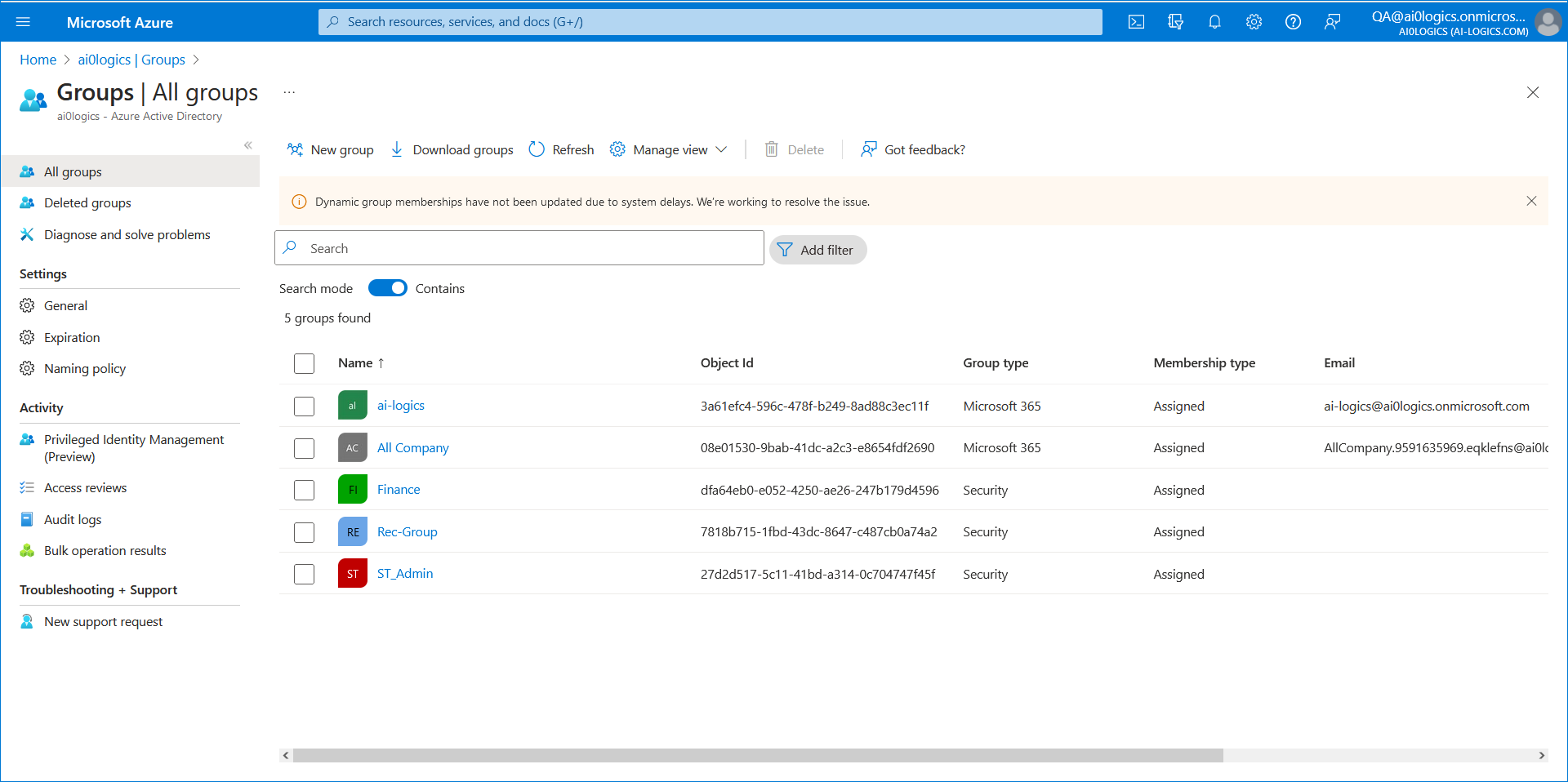
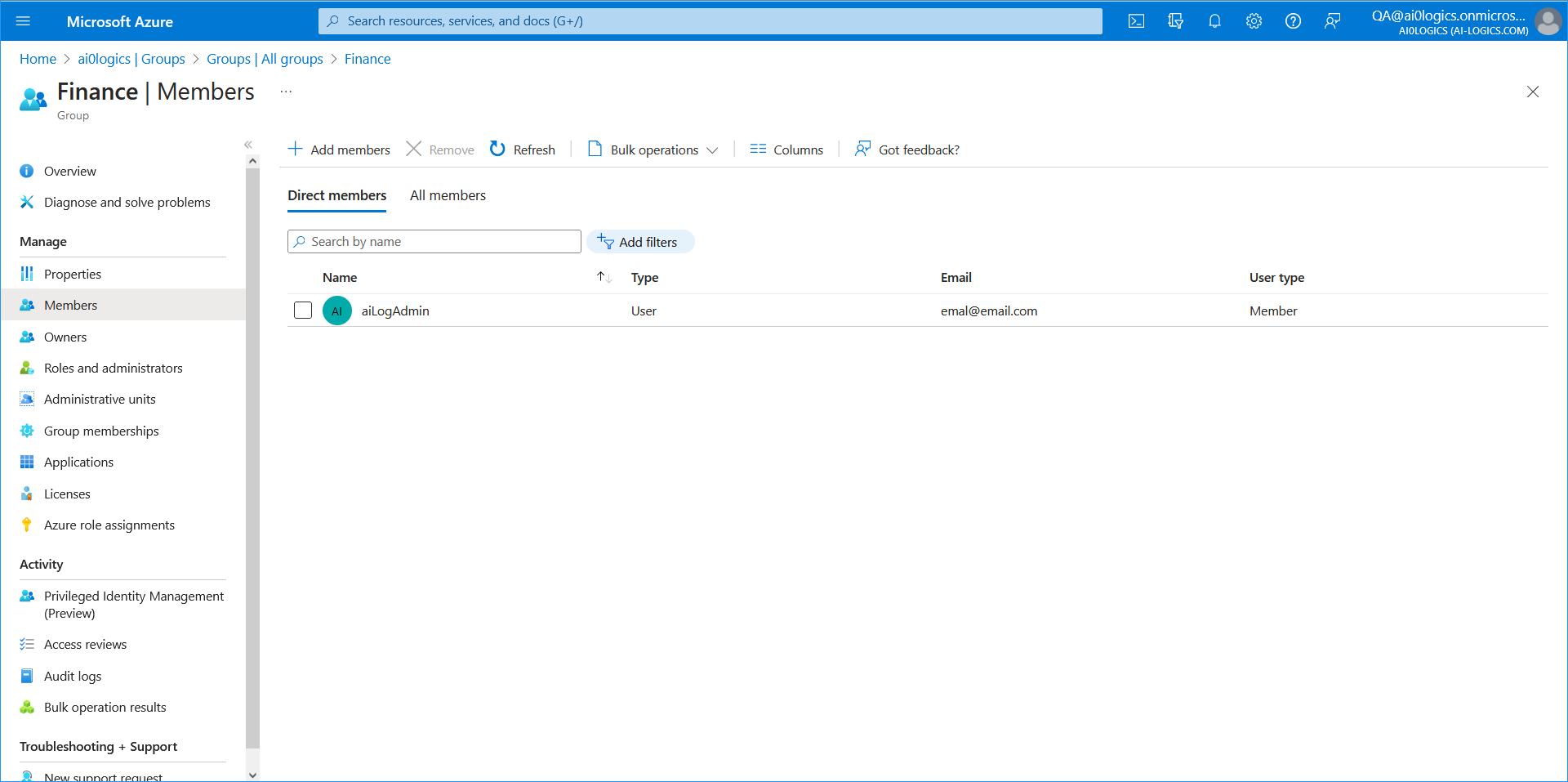
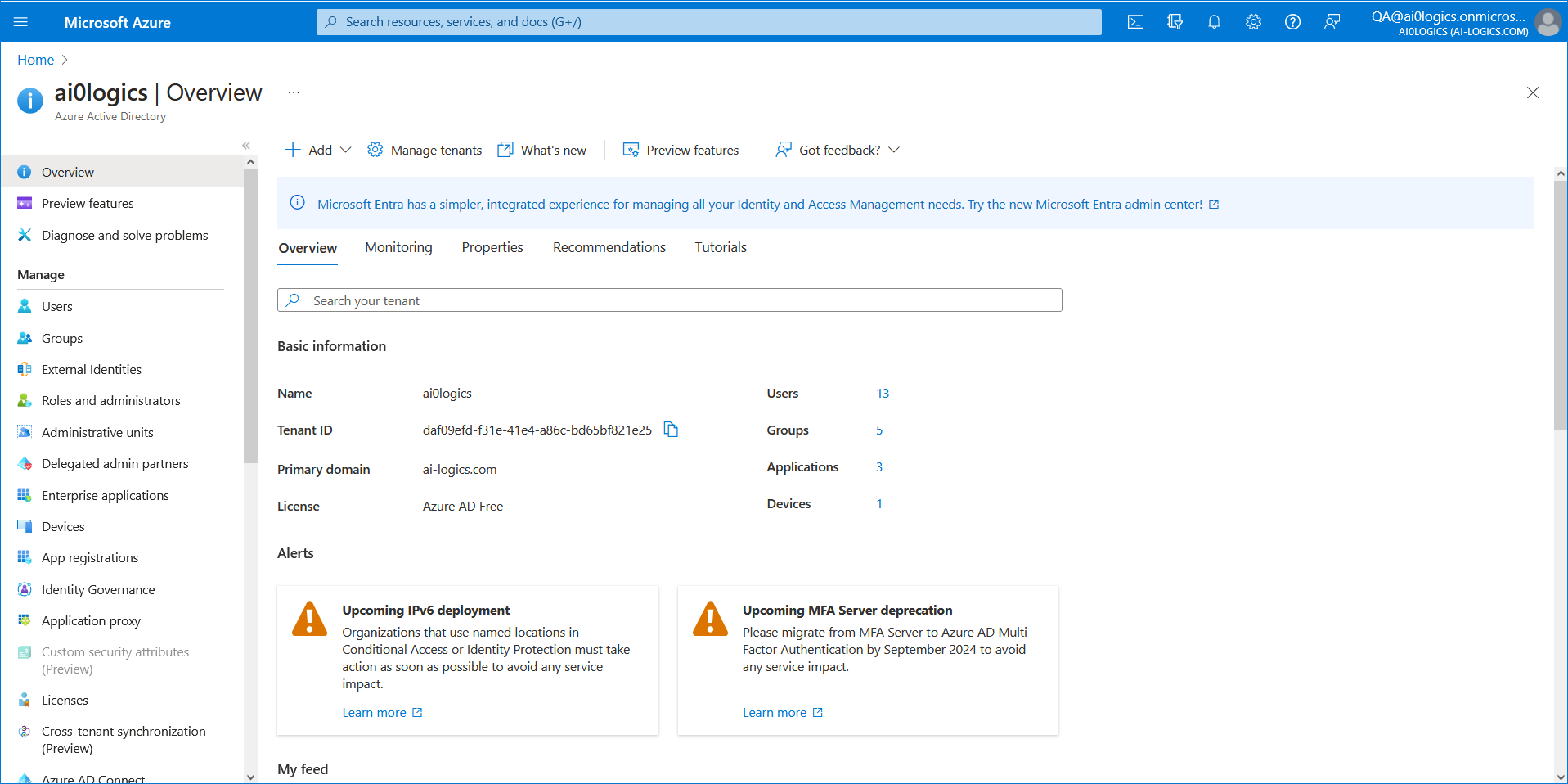
Service Provider operators can be assigned to a specific Azure AD Group whose members they are designated to manage. For example, in the Finance Group, the operator "aiLogAdmin" manages only employees in the Finance department. This operator can only view and manage the Finance group employees. The same logic applies for other managed groups for the same tenant. This feature enables affiliated corporations to be managed under the Active Directory tenant of their Parent corporate group. See Mapping Azure Groups to Customer Tenant
|

| 7. | Click the License tab and configure parameters according to the table below. |
Tenant Details – License
|
License Pool |
Description |
|---|---|
|
Devices |
Enter the total number of devices that can be managed by this tenant's License Pool, i.e., User Management Pack 365 devices, SBC devices, gateway devices and MSBR devices allowed by your license. The parameter only defines systems. It does not include phones. |
|
SBC Registrations |
Enter the number of SIP endpoints that can register with the SBCs allowed by your license. |
|
SBC Sessions |
Enter the number of concurrent call sessions supported by the SBCs in your deployment. |
|
SBC Signaling |
Enter the number of SBC signaling sessions supported by the SBCs in your deployment. |
|
SBC Transcoding |
Enter the number of SBC transcoding sessions supported by the SBC devices in your deployment. |
|
CB Analog Devices |
Support pending. Currently unsupported. |
|
CB PBX Users |
Support pending. Currently unsupported. |
|
CB Users |
Enter the number of User Management Pack 365 users per tenant. Divide the total number of User Management Pack 365 users allowed by your license, by the number of tenants in your deployment. If you purchased a license for 1000 User Management Pack 365 users and you have four tenants in your deployment, 250 users can be allocated to each tenant. You cannot exceed the total number of User Management Pack 365 users covered by your license. It's your decision how to distribute them over tenants. |
|
CB Voicemail Accounts |
Support pending. Currently unsupported. |
|
Voice Quality |
|
|
Devices |
Enter the number of SBCs, gateways and MSBRs that can be mon- itored in this tenant. |
|
Endpoints |
Enter the number of endpoints that can be monitored in this tenant. |
|
Sessions |
Enter the number of concurrent call sessions the SBCs deployed in this tenant. |
|
Users |
Enter the number of users supported by the SBC/s deployed in this tenant. |
|
Reports |
Select the number of reports to allocate to the tenant. In the example here, a total of 5 can be allocated. If 6 are chosen, the indication bar turns red alerting you that the total has been exceeded. |
|
Endpoints Management |
|
|
Endpoints |
Enter the number of endpoints the Device Manager application supports for this tenant. |

| 8. | Click the Call Storage Entities tab and configure parameters according to the table below. |
These parameters do not have default values applied in the Call Storage template (see Customizing Calls Storage), therefore its mandatory to configure them.
| Parameter | Description |
|---|---|
|
Total Calls |
The maximum number of calls that can be stored on the Live Platform server. |
|
Calls with Call Flow |
The maximum number of calls together with Call Flow that can be stored on the Live Platform server. |
|
Devices Statistics |
The maximum number of Device statistic data entries that can be stored on the Live Platform server. |
|
SIP Connections Statistics |
The maximum number of SIP Connection statistic data entries that can be stored on the Live Platform server. |
|
Sites Statistics |
The maximum number of Sites statistic data entries that can be stored on the Live Platform server. |
|
Endpoints Statistics |
The maximum number of Endpoints statistic data entries that can be stored on the Live Platform server. |
|
Users Statistics |
The maximum number of Users statistic data entries that can be stored on the Live Platform server. |
|
URI Statistics |
The maximum number of URI statistic data entries that can be stored on the Live Platform server. |
|
Location Statistics |
The maximum number of Location statistic data entries that can be stored on the Live Platform server. |
|
Customer Statistics |
The maximum number of Customer statistic data entries that can be stored on the Live Platform server. |
|
Service Statistics |
The maximum number of Service statistic data entries that can be stored on the Live Platform server. |